
Link new coverage types to an exposure type
In ClaimCenter, you must link new product model information from PolicyCenter to an exposure type.
Before you begin
Before you can link new coverage types to exposure types, you must perform the following tasks.
About this task
If the generator linked new coverages to the General Damage exposure type, you can change this exposure type. If the generator did not link new coverages to the General Damage exposure type, Studio displays errors because each coverage must have an exposure type. To clear the error conditions, you add an exposure type to each new coverage subtype.
Procedure
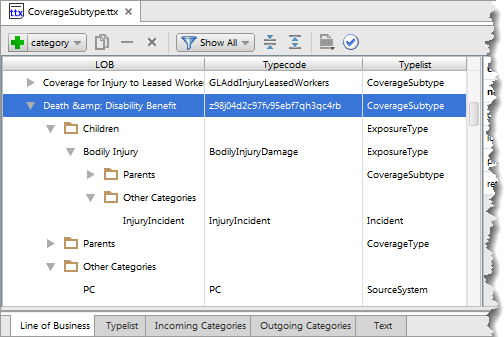
- In Guidewire Studio for ClaimCenter, navigate to , and open the CoverageSubtype.ttx file.
- On the Line of Business tab, in the list in the LOB column, select the new coverage subtype.
-
If the generator linked new coverages to the General Damage exposure type, expand the
coverage subtype and the Children
folder, right-click the row for
GeneralDamage, and then click Remove. -
Right-click the coverage subtype, and then click Add.
To create a new exposure type for this subtype, use the New typecode tab.
- Enter a value for Code and Name.
- Optionally, enter a value for Description and Priority.
- Select an Incident.
- Click OK.
To use an existing exposure type for this subtype, use the Select typecode tab.
- Select a Typecode from the list of existing typecodes.
- Click OK.
Results
The new coverage is linked to the exposure type through its generic coverage subtype. In
the following screenshot from Guidewire Studio for ClaimCenter, New Coverage
Subtype links to the ClaimCenter Property exposure type.
What to do next
To complete the integration of new lines of business into the ClaimCenter model, you perform the following tasks.